What the visibility setting controls
Your GitHub profile can show the organizations you belong to.
Sometimes that membership is useful proof.
Sometimes it is information you would rather keep quiet.
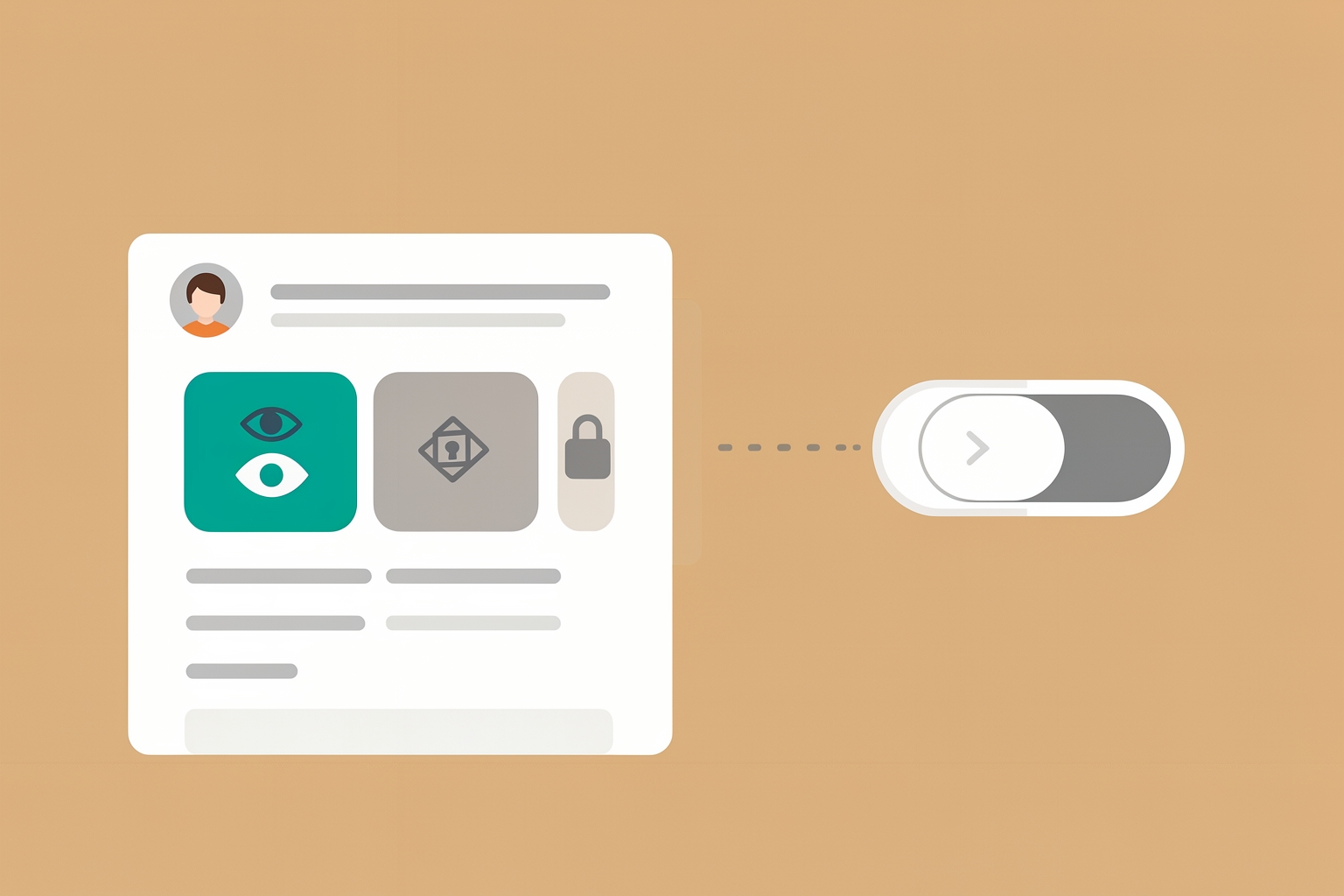
GitHub lets you decide per organization, and the choice is easy to change later.
This guide walks through what publicizing actually reveals, when it helps you, when it works against you, and how to flip the setting either way.
GitHub organization membership has two visibility states: public and private.
When your membership in an organization is public, your avatar can appear in that organization's member list, and the organization can appear on your profile.
You can change this setting yourself.
According to GitHub's documentation, you open Organizations from your profile picture, click the organization name, and open People GitHub Docs.
There you find your username and use the visibility dropdown next to it to choose Public or Private.
If the member list is long, you can search for your own username in the search box.
Two practical notes follow from that.
First, the setting is per organization, not global.
You can publicize one affiliation and hide another.
Second, it is reversible in the ordinary sense: you can switch back and forth whenever you want, so a choice you make today is not permanent.
What public membership actually signals
A public organization membership is a small, quiet signal.
It says you are part of a group, not what you did there.
Visitors to your profile see the affiliation; they do not see your role, your contributions inside the org, or how active you are.
That matters for expectations.
If you publicize membership hoping it reads as a credential, be aware that it reads as association.
The stronger evidence of actual work is usually your contribution activity, pinned repositories, or a profile README that explains your role in your own words.
GitHub's profile documentation describes the README as a section you fully control, where you can describe your work and interests GitHub Docs.
It also suggests adding context about contributions you are proud of.
So the real question is not “is this organization impressive?” but “does being visibly associated with this group help someone evaluating me?”
When publicizing makes sense
Public membership tends to help in a few situations.
- The org is a recognizable community or employer. If you contribute to a well-known open source project or work at a company people have heard of, the affiliation adds context that your repos alone may not convey.
- You are active in the org's public work. If your contributions sit inside the organization's repositories, visible membership connects those contributions to a group effort. It answers the viewer's next question: who was this work for?
- You want the affiliation on record. Public membership appears in the organization's people list and on your profile, so the association is checkable by anyone who visits either place.
- You are a student or volunteer building early proof. Early on, any verifiable affiliation is worth more than it will be later. A membership in a university club, a fellowship, or an open source program is honest, checkable evidence that you participate.
In each case the mechanism is the same: the membership fills a gap that your repositories and README cannot fill on their own, namely which groups you actually belong to.
When hiding makes sense
Private is the better default in several common situations.
- The affiliation is sensitive. GitHub's own profile documentation warns that anything on your public profile is visible to all GitHub users, including in regions where local laws, regulations, or cultural norms may pose risks to expressing your identity GitHub Docs. Membership in an organization tied to activism, identity, health, or a controversial topic can carry real-world consequences. If the association could expose you to risk anywhere, keep it private.
- You are job hunting discreetly. Membership in your current employer's organization tells anyone looking that you work there. If you would rather not broadcast that while exploring options, hide it.
- The org says nothing useful about you. Membership in a group you joined once for a single issue adds noise without signal. A leaner profile is easier to read.
- You are a member but not a contributor. Visible membership in an organization where you never contribute can invite questions you would rather not answer, or worse, imply an endorsement of everything the org does.
- You want to separate spheres. Freelancers and founders often keep client work, community work, and personal experiments in different organizations. Hiding some memberships keeps each audience seeing only the relevant context.
A quick decision checklist
For each organization, ask three questions:
- Would a stranger benefit from knowing I belong here? If the affiliation helps a recruiter, collaborator, or community member understand you, lean public.
- Could visibility cost me anything? Think about privacy, safety, current employment, and future plans. If any answer is uncomfortable, lean private.
- Does my profile already make the point another way? If your pinned repos, contribution activity, or README already show the relationship, the membership badge is optional.
When in doubt, start private.
You can publicize later in seconds, but you cannot un-see who noticed while it was visible.
How to change the setting
The steps, per GitHub's documentation GitHub Docs:
- Click your profile picture in the upper-right corner of GitHub, then click Organizations .
- Click the name of the organization.
- Under the organization name, click People .
- Locate your username in the member list. Use the search box if the list is large.
- Next to your username, open the visibility dropdown and choose Public to publicize or Private to hide.
Repeat for each organization whose visibility you want to change.
Because the control is per organization, a single pass through your organizations page is enough to set your whole profile the way you want it.
How membership fits with the rest of your profile
Organization visibility is one element among many.
GitHub's profile documentation lists the customizable pieces: profile README, personal info, contribution activity, pinned items, status, and achievements and badges GitHub Docs.
Membership is also one of the items hidden entirely if you set your whole profile to private, alongside your contribution graph, follower counts, and activity feed.
That gives you a layered strategy.
Decide the overall profile visibility first, then tune individual elements like organization membership.
If your profile is public but one affiliation is sensitive, hide just that membership.
If your whole profile is private, the per-organization setting matters less, because the profile hides memberships either way.
Also remember that public membership is association, not endorsement and not authorship.
If you want a visible organization to translate into credibility, pair it with evidence: pin a repository from that org's work, or use your README to explain what you did there.
GitHub's README guidance explicitly suggests including contributions you are proud of, with context GitHub Docs.
Common mistakes to avoid
- Publicizing everything by default. Visibility should be a choice, not an accident. Review your organizations page once and set each one deliberately.
- Treating membership as proof of work. It is not. Recruiters and collaborators weight contributions and repositories far more.
- Forgetting the setting exists when circumstances change. Starting a new job, leaving one, or joining a sensitive community are all moments to revisit visibility.
- Assuming private means secret from everyone. A private profile hides organization memberships from your public profile page, per GitHub's documentation GitHub Docs. But organization owners and members may still have their own views of membership. If the affiliation itself must stay confidential, raise it with the organization rather than relying on the visibility toggle alone.
The short answer
Publicize membership when the affiliation helps a stranger understand who you work with, and hiding it costs you nothing.
Keep it private when the association is sensitive, irrelevant, or something you would rather explain on your own terms.
The setting is per organization, takes seconds to change, and can be flipped again later, so the cost of a cautious default is low.
If you are tuning your GitHub presence more broadly, these guides cover the neighboring decisions:
- Should you change your GitHub username? — what a rename does to your links and history before you share your profile.
- Should you show private contributions? — another profile toggle with a privacy tradeoff.
- Should you put personal information on your GitHub profile? — deciding what personal details belong in public.
Take the next step with Ideoreto. Use the ideas in this guide as a starting point for your next project.
Register for Ideoreto to get started.